Login Alerts Checklist: How to Spot Real Threats vs Noise
Most login alerts are false positives caused by legitimate software, meaning your real security risk is ignoring the few genuine breaches buried in the noise.

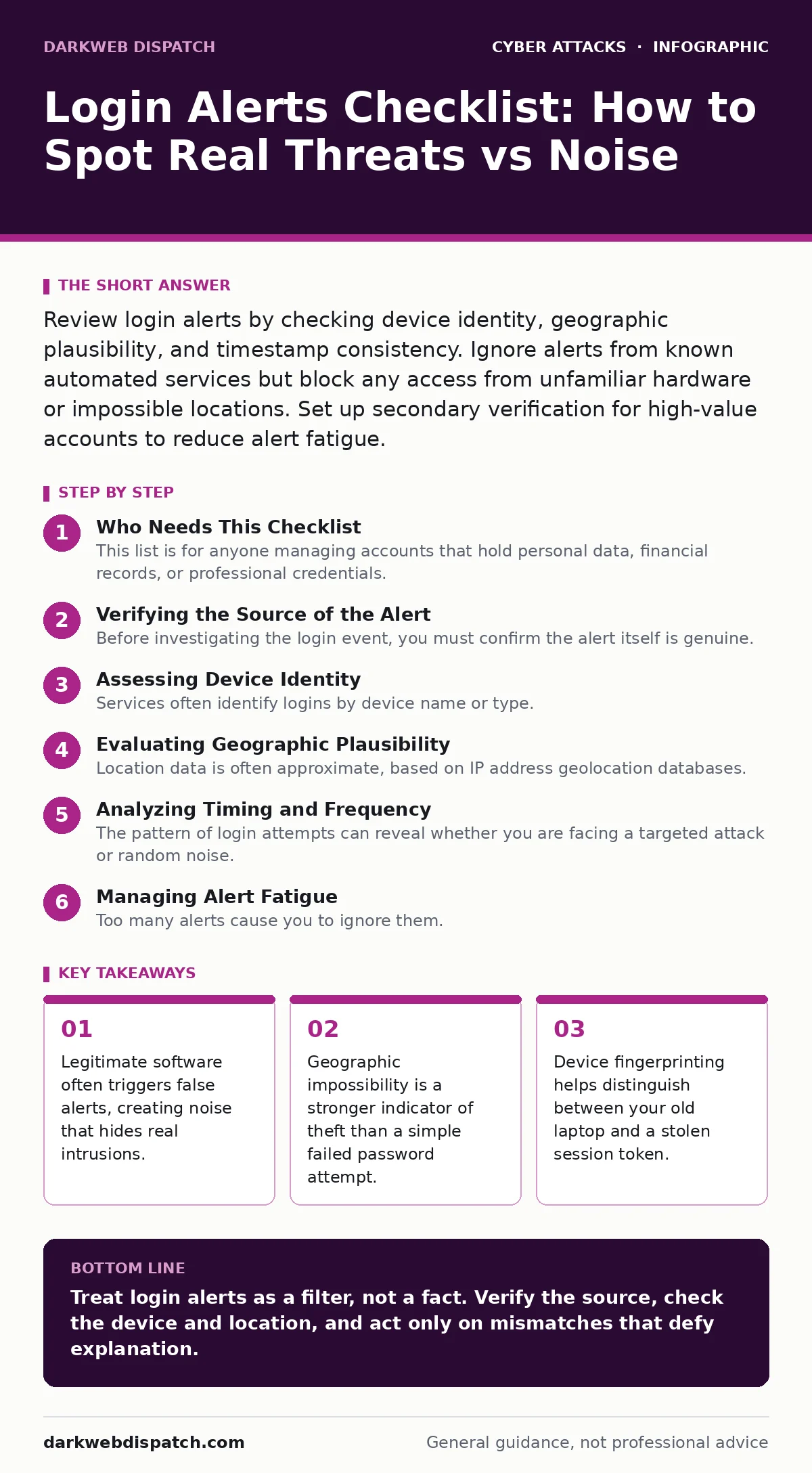
Review login alerts by checking device identity, geographic plausibility, and timestamp consistency. Ignore alerts from known automated services but block any access from unfamiliar hardware or impossible locations. Set up secondary verification for high-value accounts to reduce alert fatigue.
Who Needs This Checklist
This list is for anyone managing accounts that hold personal data, financial records, or professional credentials. You use it when you receive a notification stating that someone has accessed your account. The goal is not to read every alert, but to filter signal from noise efficiently.
Verifying the Source of the Alert
Before investigating the login event, you must confirm the alert itself is genuine. Phishing attacks often mimic security notifications to trick you into revealing credentials.
- Check the sender address: Verify the email comes from the official domain, not a lookalike address.
- Inspect the message header: Look for SPF, DKIM, and DMARC authentication results to ensure the email was not forged.
- Avoid inline links: Manually navigate to the service to view your account activity rather than clicking provided URLs.
If you are unsure how to verify email authenticity, refer to our guide on email spoofing for detailed header inspection techniques.
Assessing Device Identity
Services often identify logins by device name or type. This helps you distinguish between your own forgotten devices and an intruder’s machine.
- Match the device name: Compare the reported device against your known hardware list.
- Check the operating system: Ensure the OS version matches your current setup.
- Review the browser type: Confirm the browser matches your usual preference.
Imagine you see a login from "Windows 10" but you only use macOS. This mismatch suggests a compromised session token or a stolen password being used on a different machine.
Evaluating Geographic Plausibility
Location data is often approximate, based on IP address geolocation databases. It is not precise, but it can reveal impossible travel scenarios.
- Compare the city: Check if the login location is where you currently are.
- Check the country: Flag any access from countries you have not visited recently.
- Note the time zone: A login at 3 AM local time from your home IP might be automated, but from abroad it is suspicious.
Suppose you are in London and see a login from Tokyo an hour ago. Unless you have a remote worker using your credentials, this is likely a breach.
Analyzing Timing and Frequency
The pattern of login attempts can reveal whether you are facing a targeted attack or random noise.
- Check the timestamp: Determine if the login occurred while you were actively using the account.
- Look for rapid bursts: Multiple failed attempts followed by a success indicate a brute force attack.
- Identify off-hours access: Logins during times you never use the service warrant investigation.
Rapid bursts are often automated scripts. A single successful login after many failures is a red flag that the attacker guessed your password.
Managing Alert Fatigue
Too many alerts cause you to ignore them. You must tune your settings to reduce noise from legitimate sources.
- Whitelist trusted IPs: Suppress alerts from your home or office network if possible.
- Exclude known apps: Turn off alerts for specific trusted applications or automation tools.
- Consolidate notifications: Use a single dashboard for security alerts rather than scattered emails.
Taking Corrective Action
When an alert indicates a genuine threat, you must act quickly to secure the account.
- Change the password: Use a unique, complex password generated by a tool.
- Enable multi-factor authentication: Add a second layer of verification, such as an authenticator app.
- Revoke active sessions: Log out of all other devices to terminate the attacker’s access.
If you do not already use a password manager, now is the time to adopt one. It helps generate and store unique passwords for every service.
Long-Term Monitoring Strategies
Security is not a one-time fix. You need ongoing monitoring to detect future compromises.
- Review logs weekly: Make it a habit to scan for unusual activity.
- Update recovery options: Ensure your backup email and phone number are current.
- Monitor for credential leaks: Check if your email has appeared in known data breaches.
For broader advice on maintaining account security, see our guide on cyber hygiene. If you are concerned about network-level threats, our guide on intrusion detection systems explains how they complement account-level alerts.
Key takeaways
- Legitimate software often triggers false alerts, creating noise that hides real intrusions.
- Geographic impossibility is a stronger indicator of theft than a simple failed password attempt.
- Device fingerprinting helps distinguish between your old laptop and a stolen session token.
Treat login alerts as a filter, not a fact. Verify the source, check the device and location, and act only on mismatches that defy explanation.
Frequently asked questions
Why do I get alerts when I didn’t log in?
Automated scripts, background app refreshes, or cached sessions can trigger alerts even without manual interaction.
Is a login from a new country always a hack?
No, but it is suspicious. If you are travelling, it may be legitimate. If you are stationary, block it immediately.
Can I disable login alerts for convenience?
You can suppress alerts for trusted networks, but never disable them entirely. You will miss critical breach notifications.
What if I lose my phone and can’t verify alerts?
Use your backup recovery method to regain access and reset your security settings immediately.
How this guide was produced: written by the DarkWeb Dispatch editorial team with AI assistance, checked against the public references listed below, and reviewed when the facts change. See our editorial policy or report an error.