Detect Mac Malware: Log Analysis and Hidden System Indicators
Most Mac malware hides in plain sight by abusing legitimate system processes and disabling standard security controls rather than installing new, suspicious binaries.

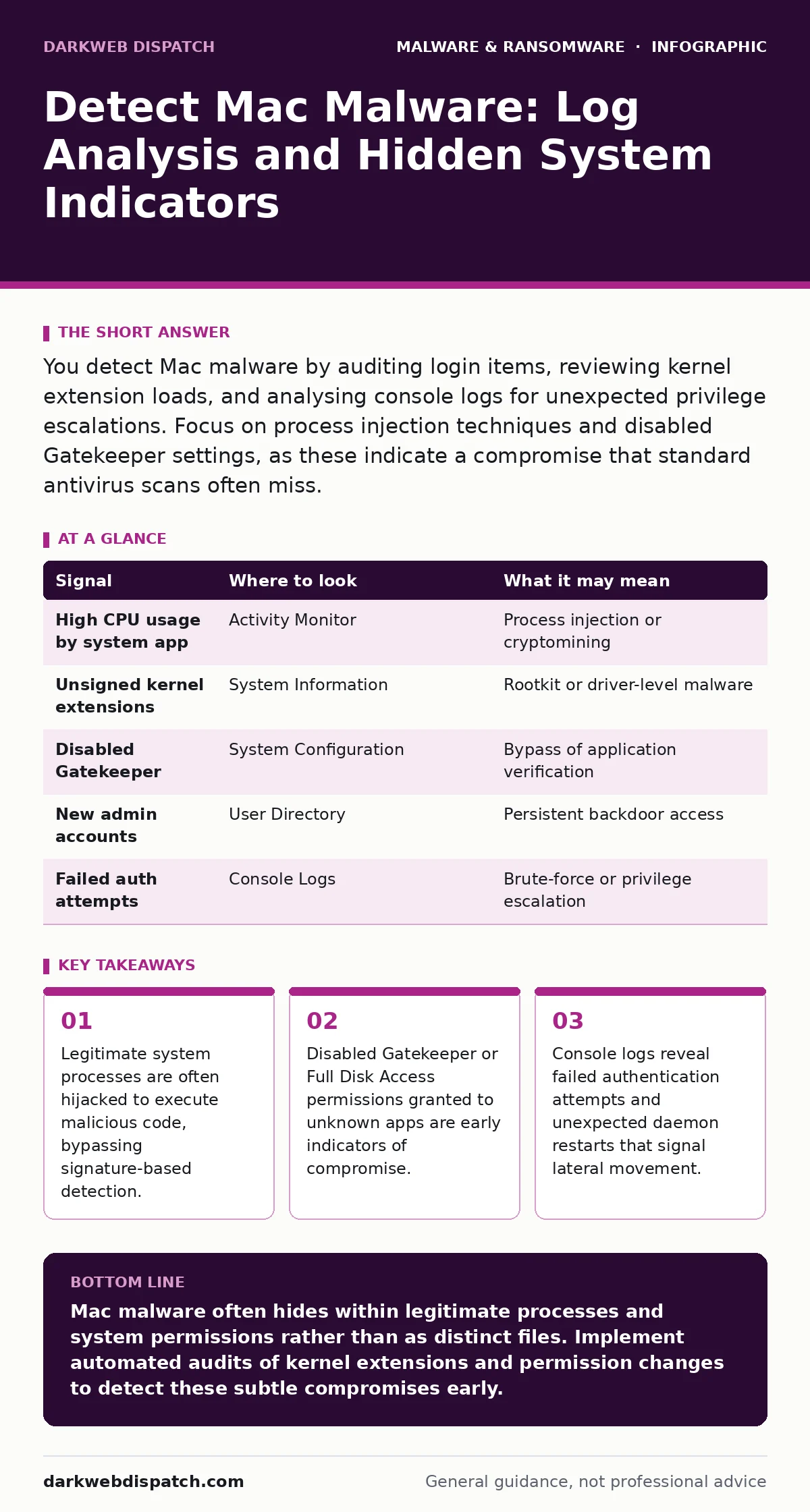
You detect Mac malware by auditing login items, reviewing kernel extension loads, and analysing console logs for unexpected privilege escalations. Focus on process injection techniques and disabled Gatekeeper settings, as these indicate a compromise that standard antivirus scans often miss.
The Illusion of Safety
Many organisations assume macOS is immune to targeted attacks. This assumption creates a blind spot where malicious actors operate with impunity. You must treat macOS endpoints with the same scrutiny as Windows systems. The threat model differs, but the intent remains the same.
Unlike Windows, macOS relies heavily on permission models rather than file system restrictions. An attacker who gains initial access can often persist without triggering traditional alerts. You need to look beyond simple file hashes. You must understand how the operating system manages trust and execution.
Process Injection and Masquerading
Malware rarely runs as a standalone executable on modern macOS versions. Instead, it injects code into legitimate processes. This technique, known as process injection, allows malicious code to run inside trusted applications like Safari or Finder.
When you inspect running processes, you will see standard system apps. However, their resource usage may spike unexpectedly. Memory consumption is a key indicator. A web browser using excessive CPU for no visible reason may be hosting a cryptominer or a command-and-control beacon.
You should also check for duplicate processes. Some malware clones legitimate processes to confuse monitoring tools. If you see two instances of a system daemon running with different parent process IDs, investigate further. This anomaly suggests an attempt to blend in with normal system activity.
Kernel Extension Abuse
Kernel extensions allow software to interact directly with the operating system kernel. These extensions have full access to hardware and memory. Malware often installs kernel extensions to hide its presence or disable security features.
Check for unsigned or improperly signed kernel extensions. macOS requires all kernel code to be signed by Apple or a trusted developer. Unsigned extensions are a red flag. They indicate that the software has bypassed standard security checks.
Use system reports to list loaded kernel extensions. Look for extensions that do not match known hardware drivers or utility software. If you find an extension with a generic name, trace its origin. It may be a rootkit designed to intercept system calls and hide malicious files.
Permission and Gatekeeper Analysis
Gatekeeper is macOS security feature that scans downloaded applications for malware and verifies their signature. Attackers often disable Gatekeeper to prevent detection of their tools. This change is persistent and survives reboots.
You can check the status of Gatekeeper by examining system configuration. If Gatekeeper is disabled, any downloaded application can run without warning. This is a significant risk. It means the user or an attacker has explicitly lowered security barriers.
Full Disk Access is another critical permission. It allows apps to read and write to any part of the file system. Malware requests this permission to access sensitive data. Check which apps have Full Disk Access. Remove access for any application that does not require it. This limits the damage if the application is compromised.
Console Logs and Audit Trails
Console logs record system events and application messages. They provide a timeline of activity on the Mac. Malware often leaves traces in these logs, even if it deletes its own files.
Look for repeated failed authentication attempts. These may indicate a brute-force attack or an attempt to escalate privileges. Also, watch for unexpected daemon restarts. A daemon restarting frequently may be fighting against security software or trying to maintain persistence.
You should also monitor for new user accounts. Attackers often create hidden accounts to maintain access. Check the user directory for accounts that do not match your organisation's naming conventions. These accounts may have administrative privileges, allowing the attacker to bypass restrictions.
| Signal | Where to look | What it may mean |
|---|---|---|
| High CPU usage by system app | Activity Monitor | Process injection or cryptomining |
| Unsigned kernel extensions | System Information | Rootkit or driver-level malware |
| Disabled Gatekeeper | System Configuration | Bypass of application verification |
| New admin accounts | User Directory | Persistent backdoor access |
| Failed auth attempts | Console Logs | Brute-force or privilege escalation |
Common Blind Spots
One major blind spot is the reliance on third-party antivirus software. Many Mac-specific threats do not match known signatures. They use legitimate tools for malicious purposes. This technique, known as living-off-the-land, evades signature-based detection.
Another blind spot is the assumption that users will report suspicious behaviour. Users may not understand what is normal. They might ignore a prompt asking for accessibility permissions. This permission allows an app to control the mouse and keyboard. It is often abused by spyware and ransomware.
You must also consider the supply chain. Malware can enter through legitimate software updates. If a trusted vendor is compromised, their updates may contain malicious code. This is why verifying code signatures is critical. It ensures that the software has not been tampered with since it was signed.
Next Steps for IT Teams
Start by establishing a baseline of normal system behaviour. Document what legitimate processes look like on your Macs. This baseline allows you to identify anomalies more easily. Without a baseline, every alert is a potential false positive.
Implement regular audits of system permissions and kernel extensions. Schedule these audits to run automatically. Manual checks are often skipped due to time constraints. Automation ensures that no Mac is left unchecked.
Finally, educate your users on the risks of granting permissions. Explain why they should deny requests for accessibility or full disk access unless they trust the application. This human layer of defence is often the last line of protection against sophisticated attacks. For more on reducing the impact of such breaches, see our guide on attack surface reduction rules. You may also want to review how infostealers operate to understand the data at risk.
Key takeaways
- Legitimate system processes are often hijacked to execute malicious code, bypassing signature-based detection.
- Disabled Gatekeeper or Full Disk Access permissions granted to unknown apps are early indicators of compromise.
- Console logs reveal failed authentication attempts and unexpected daemon restarts that signal lateral movement.
Mac malware often hides within legitimate processes and system permissions rather than as distinct files. Implement automated audits of kernel extensions and permission changes to detect these subtle compromises early.
Frequently asked questions
How do I check if Gatekeeper is disabled on my Mac?
Use the terminal command `spctl --status` to check the current status. If it returns "assessments disabled", Gatekeeper is turned off.
What is the difference between spyware and ransomware on macOS?
Spyware silently collects data like keystrokes and screenshots, while ransomware encrypts files and demands payment for decryption. Both often use similar persistence mechanisms.
Can macOS malware spread to other devices on the network?
Yes, if the malware has network access and exploits vulnerabilities in other systems. It can act as a pivot point for further attacks within the organisation.
How often should I audit Mac system logs?
Continuous monitoring is ideal. If that is not possible, audit logs weekly to catch recent anomalies before they escalate into major incidents.
How this guide was produced: written by the DarkWeb Dispatch editorial team with AI assistance, checked against the public references listed below, and reviewed when the facts change. See our editorial policy or report an error.