Remove Mac Malware: 7 Common Mistakes That Leave Systems Infected
Most Mac cleanup failures occur because users delete visible files while ignoring hidden processes and persistent system extensions that survive reboots.

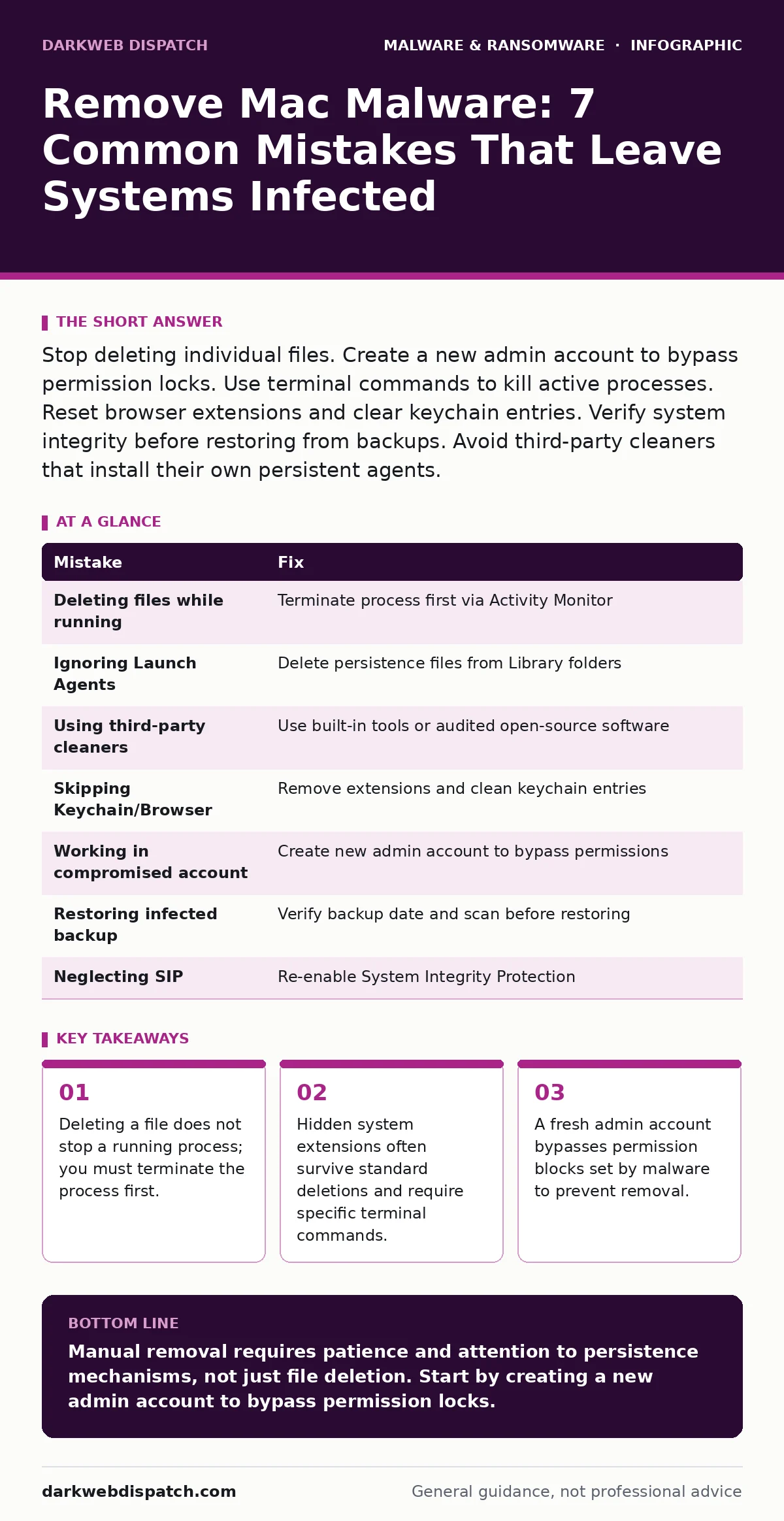
Stop deleting individual files. Create a new admin account to bypass permission locks. Use terminal commands to kill active processes. Reset browser extensions and clear keychain entries. Verify system integrity before restoring from backups. Avoid third-party cleaners that install their own persistent agents.
Mistake 1: Deleting Files While the Process Runs
Why it hurts:
Imagine you spot a suspicious application in your Applications folder. You drag it to the Trash and empty it. The malware is still running in the background. macOS prevents the deletion of active files, or the system simply holds the file open. The malware continues to exfiltrate data or mine cryptocurrency. You believe the threat is gone, but the process remains active. This creates a false sense of security. The malware can also recreate the deleted file immediately.
The fix:
Open Activity Monitor from the Utilities folder. Locate the suspicious process by name or high CPU usage. Select the process and click the stop button to terminate it. Only after the process is dead can you delete the associated files. If the process restarts automatically, you need to address the persistence mechanism first. Use the Terminal to force quit stubborn processes if the GUI fails. This ensures the binary is no longer executing code.
Mistake 2: Ignoring Launch Agents and Daemons
Why it hurts:
Malware installs persistence mechanisms to survive reboots. These are often Launch Agents or Launch Daemons. Launch Agents run when a user logs in. Launch Daemons run at system startup, regardless of who logs in. If you delete the main application but leave these configuration files, the malware reloads itself. It may pull new payloads from the internet. This is a common reason why infections return after a restart. You have removed the symptom, not the cause.
The fix:
Check the Library folders for suspicious items. Look in ~/Library/LaunchAgents for user-specific tasks. Check /Library/LaunchDaemons and /Library/LaunchAgents for system-wide tasks. These folders contain XML property list files. Look for files with unfamiliar names or those pointing to deleted applications. Move these files to the Trash. You may need administrator privileges to modify system Library folders. This breaks the chain of automatic execution.
Mistake 3: Relying on Third-Party Cleanup Tools
Why it hurts:
Many users download "Mac cleaner" or "antivirus" tools from search results. These are often paid software with aggressive marketing. Some are legitimate, but many are poorly coded or bloated. They may miss specific macOS threats because they lack deep system integration. Worse, some install their own background services that are hard to remove. You trade one persistent process for another. This increases your attack surface. The original malware might remain untouched while the cleaner consumes resources.
The fix:
Use built-in macOS tools first. Activity Monitor, Terminal, and System Settings are sufficient for most removal tasks. If you need external help, use open-source or widely audited tools from trusted sources. Verify the digital signature of any tool before running it. Do not install software that requires you to disable security features. Keep your system updated to ensure built-in protections like Gatekeeper are current. This reduces reliance on potentially flawed third-party agents.
Mistake 4: Skipping the Keychain and Browser Data
Why it hurts:
Malware often targets stored credentials. It may inject itself into your Keychain to steal passwords. It can also install browser extensions that track your activity. Deleting the malware binary does not remove these extensions or corrupted keychain entries. The crypto-stealing malware has already harvested your tokens. Your browser may continue to redirect you to malicious sites. You remain vulnerable to session hijacking. The infection has moved from execution to data theft.
The fix:
Open Keychain Access and look for items with unusual names or recent creation dates. Delete suspicious entries. Be careful not to delete legitimate system certificates. Check your browser extensions. Remove any you do not recognise or no longer use. Clear your browser cache and cookies. This removes any tracking scripts or injected code. Reset your passwords for critical accounts. This limits the damage of any stolen credentials.
Mistake 5: Working in the Compromised User Account
Why it hurts:
Malware often sets file permissions to prevent deletion. It may lock files owned by your user account. If you try to remove the malware from the same account it infected, you hit permission errors. The malware blocks your access to its own files. This stalls the removal process. You may think the file is stuck, but it is actively defending itself. This is a common defence mechanism against manual removal.
The fix:
Create a new administrator account. Log out of the infected account. Log in to the new account. From this clean environment, you can delete files in the old user's home directory. The malware cannot protect itself against a different user's permissions. This bypasses most permission-based locks. After removal, you can delete the old account and its data. This ensures a clean slate for your files.
Mistake 6: Restoring from an Infected Backup
Why it hurts:
You remove the malware and then restore your files from a Time Machine backup. If the backup was created while the malware was present, you reinfect your Mac. The backup contains the malicious files and persistence mechanisms. You undo all your hard work. This is a frequent oversight in recovery procedures. The backup is a snapshot in time, including any threats present then. You have effectively time-travelled back to the infection.
The fix:
Verify the backup date. Ensure it predates the infection by a significant margin. If you are unsure, restore only specific files, not the entire system. Scan the backup drive before restoring. Use a separate, clean Mac to inspect the backup contents. This prevents the spread of infection to your clean system. Consider using cloud backups with versioning. This allows you to select a clean version of your files.
Mistake 7: Neglecting System Integrity Protection
Why it hurts:
macOS uses System Integrity Protection to safeguard core system files. Malware may try to disable this to install deeper rootkits. If SIP is disabled, your system is more vulnerable. It allows code injection into protected processes. This is a serious security degradation. Many users disable SIP to install software and forget to re-enable it. This leaves the door open for advanced threats. The protection barrier is gone.
The fix:
Check if SIP is enabled. Boot into Recovery Mode and use Terminal to verify status. Re-enable SIP if it has been disabled. This restores the default security posture. Do not disable SIP unless absolutely necessary for specific development tasks. Re-enable it immediately after. This ensures core system files remain tamper-proof. It raises the bar for attackers.
| Mistake | Fix |
|---|---|
| Deleting files while running | Terminate process first via Activity Monitor |
| Ignoring Launch Agents | Delete persistence files from Library folders |
| Using third-party cleaners | Use built-in tools or audited open-source software |
| Skipping Keychain/Browser | Remove extensions and clean keychain entries |
| Working in compromised account | Create new admin account to bypass permissions |
| Restoring infected backup | Verify backup date and scan before restoring |
| Neglecting SIP | Re-enable System Integrity Protection |
Key takeaways
- Deleting a file does not stop a running process; you must terminate the process first.
- Hidden system extensions often survive standard deletions and require specific terminal commands.
- A fresh admin account bypasses permission blocks set by malware to prevent removal.
Manual removal requires patience and attention to persistence mechanisms, not just file deletion. Start by creating a new admin account to bypass permission locks.
Frequently asked questions
Can I remove Mac malware without an internet connection?
Yes, if you have identified the files and processes. You can terminate processes and delete files offline. However, you cannot update security definitions or scan for new threats without connectivity.
Does macOS have built-in antivirus?
It has Gatekeeper and XProtect. Gatekeeper checks apps before installation. XProtect scans for known malware signatures. These are passive protections and do not replace active monitoring or manual removal for advanced threats.
How do I know if my Mac is infected?
Look for high CPU usage, unknown processes in Activity Monitor, and new browser extensions. Check for unexpected changes in your settings or slow performance. These are common indicators of malicious activity.
Should I wipe my Mac if malware is found?
Only if you cannot remove the persistence mechanisms. If you can delete all associated files and processes, a wipe is unnecessary. A wipe is the safest option for critical data or if you are unsure of the removal completeness.
How this guide was produced: written by the DarkWeb Dispatch editorial team with AI assistance, checked against the public references listed below, and reviewed when the facts change. See our editorial policy or report an error.