Browser Hijacker Prevention Checklist for Secure Browsing
Browser hijackers exploit silent permission grants and extension loopholes to redirect traffic, often bypassing traditional antivirus scans by operating within the browser’s trusted environment.
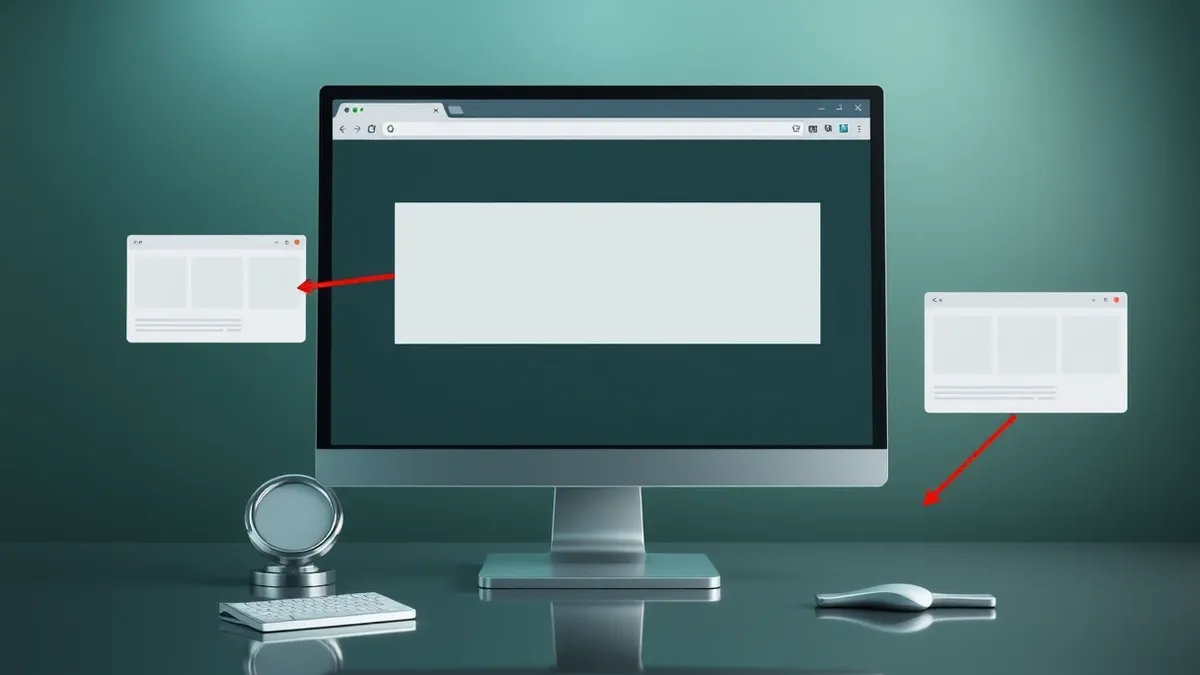
Stop browser hijackers by auditing extensions, locking search settings, disabling push notifications, and using strict privacy filters. This checklist covers configuration changes that prevent unwanted redirects and data harvesting without requiring advanced technical skills or expensive security suites.
Who Needs This Checklist and How to Use It
This checklist serves users who share devices, work in open offices, or browse the web casually. Browser hijackers are persistent because they exploit user convenience rather than complex exploits. You do not need to be a security engineer to defend against them. The measures below focus on configuration hygiene and permission minimisation. Use this list after installing new software or if you notice unexpected home pages. Regular audits prevent the accumulation of unwanted background processes that degrade performance and privacy.
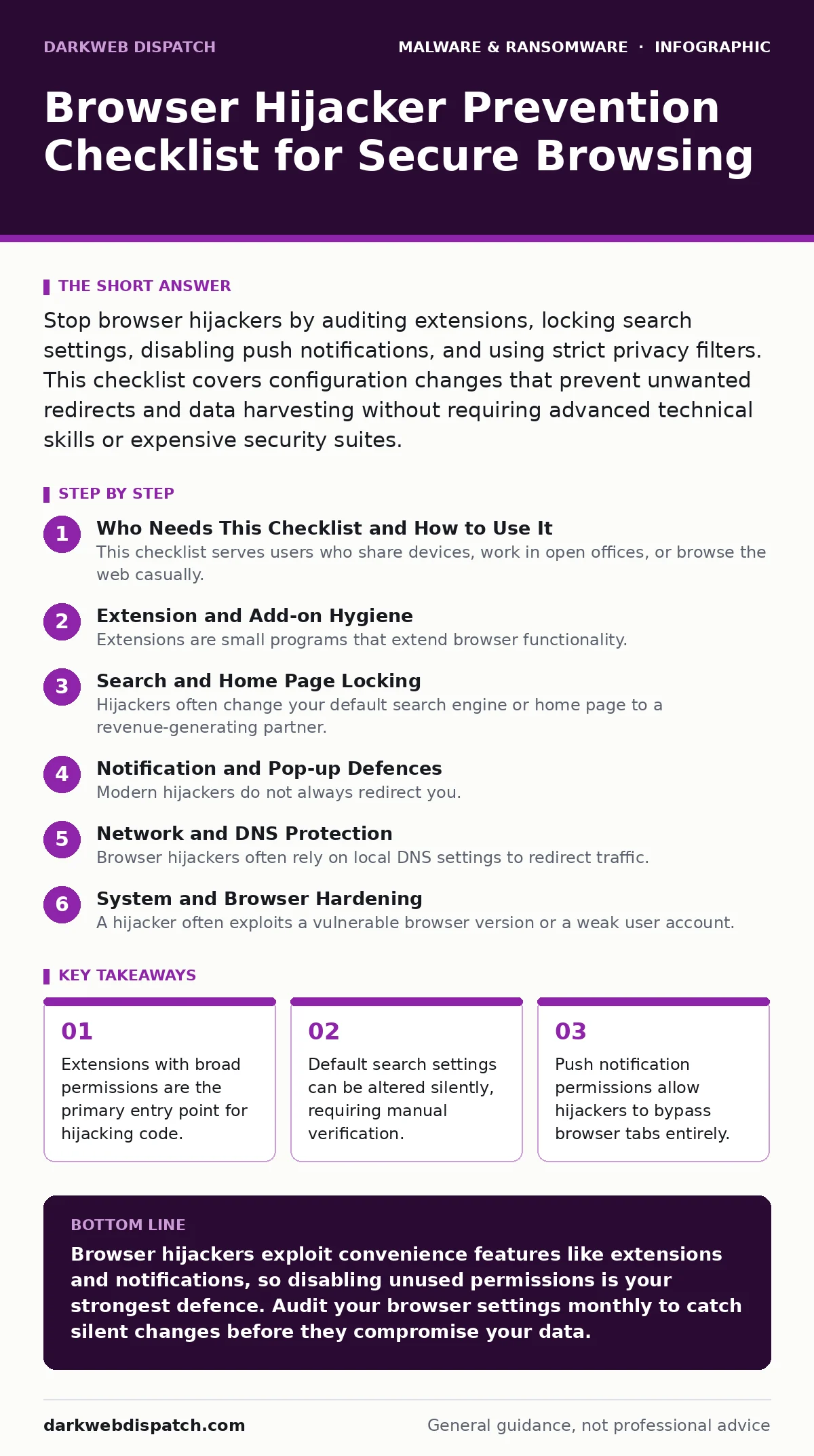
Extension and Add-on Hygiene
Extensions are small programs that extend browser functionality. They require permissions to access your data, tabs, and network requests. A malicious extension can rewrite traffic before your security tools see it.
- Remove unused extensions: unused code provides unnecessary attack surface for hijackers.
- Audit permissions quarterly: broad access like "read all data" is a red flag.
- Install only from verified stores: third-party sources lack the vetting of official repositories.
- Disable auto-updates for extensions: some hijackers update themselves to bypass removal tools.
Search and Home Page Locking
Hijackers often change your default search engine or home page to a revenue-generating partner. This redirection happens silently. You may not notice the change until you click a search result that leads to a sponsor page. These settings are stored locally and can be overwritten by scripts.
- Hardcode your home page URL: prevents scripts from resetting it to a hijacker domain.
- Lock default search engine: prevents automatic switching to low-quality search providers.
- Clear search history weekly: removes tracking tokens that hijackers use to profile you.
- Disable "search suggestions": stops the browser from leaking queries before you press enter.
Notification and Pop-up Defences
Modern hijackers do not always redirect you. Instead, they request permission to send push notifications. Once granted, they can display fake virus warnings or ads directly on your desktop. This bypasses browser tab isolation and looks like a system alert. Users often click these alerts, installing further malware.
- Block push notifications by default: prevents hijackers from using your screen for ads.
- Review notification permissions monthly: revoke access for sites you no longer visit.
- Disable "allow sites to ask" globally: stops the initial prompt that tricks users.
- Use a pop-up blocker: catches secondary windows that hijackers spawn after a redirect.
Network and DNS Protection
Browser hijackers often rely on local DNS settings to redirect traffic. If your device points to a malicious DNS server, every web request can be intercepted. Changing DNS settings is a common tactic for persistent hijackers that survive browser resets. Secure DNS protocols encrypt these requests, preventing local manipulation.
- Use DNS-over-HTTPS: encrypts DNS queries to prevent local network interception.
- Disable automatic proxy settings: prevents hijackers from routing traffic through their servers.
- Check hosts file integrity: ensures no local domains are redirected to malicious IPs.
- Enable browser safe browsing: warns you before you load known hijacking pages.
System and Browser Hardening
A hijacker often exploits a vulnerable browser version or a weak user account. Running your browser with administrative privileges allows the hijacker to modify system files. Standard user accounts limit what the hijacker can do, even if it gains control of the browser process.
- Run browser as standard user: limits the hijacker’s ability to modify system files.
- Enable sandboxing: isolates browser processes from the rest of the operating system.
- Disable Java and Flash: removes legacy plugins that hijackers often exploit.
- Keep browser updated automatically: patches known vulnerabilities that hijackers target.
Dealing with Persistent Hijackers
Some hijackers install browser helper objects or scheduled tasks to survive removal. If the checklist above fails, the hijacker has likely embedded itself deeper. You may need to inspect startup items or use dedicated removal tools. For deeper system-level threats, refer to our guide on removing malware from a Mac or device hardening for operating system-specific steps. These guides cover registry edits and startup item management.
Summary and Next Steps
Preventing browser hijackers requires a layered approach. You must manage permissions, lock settings, and monitor network behaviour. No single tool stops all hijackers. Regular maintenance is more effective than reactive cleaning. If you encounter a hijacker that resists these steps, consider malware analysis techniques to understand its persistence mechanism. For organisational environments, review software restriction policies to limit executable permissions. This checklist provides a strong baseline for individual users.
Key takeaways
- Extensions with broad permissions are the primary entry point for hijacking code.
- Default search settings can be altered silently, requiring manual verification.
- Push notification permissions allow hijackers to bypass browser tabs entirely.
Browser hijackers exploit convenience features like extensions and notifications, so disabling unused permissions is your strongest defence. Audit your browser settings monthly to catch silent changes before they compromise your data.
Frequently asked questions
Can a browser hijacker steal my passwords?
Yes, if it has permission to access your browsing data or if it uses a keylogger extension, it can capture credentials as you type them into login forms.
Do antivirus programs detect browser hijackers?
Traditional antivirus often misses hijackers because they operate within the browser’s trusted environment, but **endpoint detection and response (EDR)** tools can flag their unusual behaviour.
How do I know if I have a browser hijacker?
Look for unexpected home page changes, unknown extensions, slow browsing speeds, or frequent redirects to unfamiliar search engines or advertising networks.
Is it safe to install browser extensions from unofficial stores?
No, unofficial stores lack security vetting, making them a common source of hijackers that can access and modify your browsing data without your knowledge.
How this guide was produced: written by the DarkWeb Dispatch editorial team with AI assistance, checked against the public references listed below, and reviewed when the facts change. See our editorial policy or report an error.