Drive-by Downloads: 7 Browser Mistakes That Install Malware
Your browser executes code before you click anything, turning routine browsing into a silent infection vector that bypasses standard security warnings.

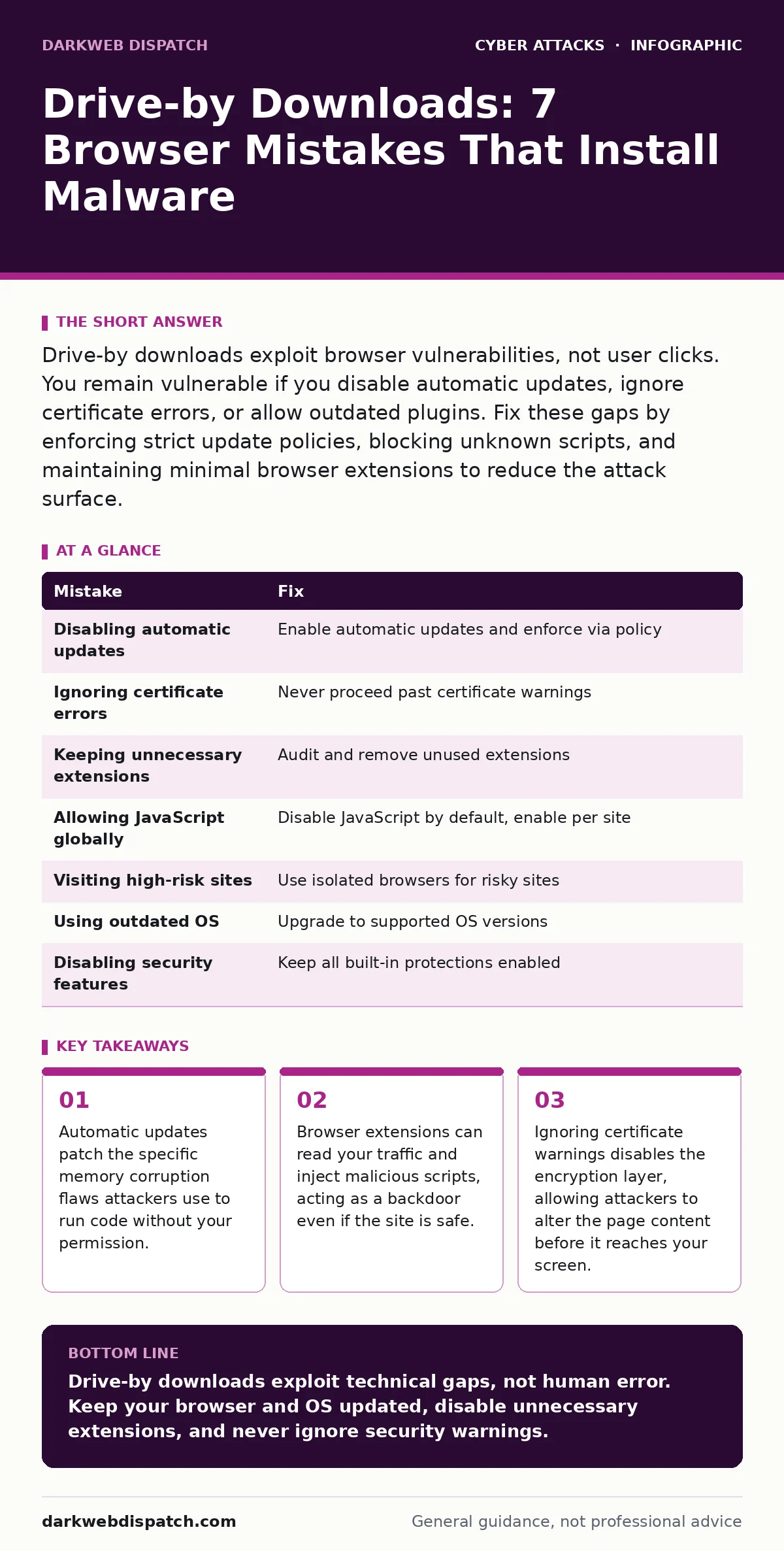
Drive-by downloads exploit browser vulnerabilities, not user clicks. You remain vulnerable if you disable automatic updates, ignore certificate errors, or allow outdated plugins. Fix these gaps by enforcing strict update policies, blocking unknown scripts, and maintaining minimal browser extensions to reduce the attack surface.
Mistake 1: Disabling Automatic Browser Updates
You leave your browser on manual update mode or ignore prompts to upgrade. This is the single largest factor in drive-by download success. Attackers scan for visitors running known vulnerable versions. They do not need to trick you into clicking a link. The browser itself executes the malicious code when it renders the page.
Why it hurts:
Browser vendors release patches for memory corruption bugs within days of discovery. These bugs allow attackers to overwrite memory instructions. When you visit a compromised site, the browser tries to process the malicious data. The bug triggers, and the attacker gains control of your system. This happens in the background. You see no warning. The malware installs before you realise anything is wrong.
The fix:
Enable automatic updates in your browser settings. If you manage a fleet of devices, enforce this via group policy or mobile device management. Do not allow users to defer critical security updates. Regular updates ensure you have the latest protections against known exploits. This reduces the window of opportunity for attackers to target your specific version.
Mistake 2: Ignoring Certificate Errors
You click "Proceed Anyway" when the browser warns that the site’s security certificate is invalid. You assume the warning is a false positive or a server configuration error. This action disables the encryption verification process. It tells the browser to trust the site despite evidence that the connection is not secure.
Why it hurts:
Certificate errors indicate that the site’s identity cannot be verified. An attacker may be intercepting your connection. This is similar to an adversary-in-the-middle phishing attack, where the attacker sits between you and the server. They can modify the page content. They can inject malicious scripts that download malware. By ignoring the warning, you grant the attacker permission to serve you harmful content.
The fix:
Never proceed past certificate errors. Treat them as a stop sign. If a site you trust shows this error, contact the site administrator. For unknown sites, leave the page immediately. Configure your browser to block mixed content, which prevents secure pages from loading insecure scripts. This ensures that every piece of code you execute comes from a verified source.
Mistake 3: Keeping Unnecessary Browser Extensions
You install extensions for convenience, such as ad blockers, password fillers, or shopping assistants. You rarely review which extensions are active. Each extension has access to your browsing data. Some extensions request permissions to read and change all your data on every website. This creates a large attack surface.
Why it hurts:
Extensions run with high privileges. If an extension is compromised, the attacker can inject code into any page you visit. They can bypass the browser’s sandbox. They can steal cookies and session tokens. Even if the main browser is secure, a vulnerable extension can act as a backdoor. Attackers often target popular extensions because compromising one affects thousands of users.
The fix:
Audit your extensions monthly. Remove any extension you do not use actively. Check the permissions each extension requests. If an extension asks for access to all sites, consider if it truly needs it. Use a password manager for credential storage instead of a browser extension. This reduces the number of potential entry points for malware.
Mistake 4: Allowing JavaScript on All Sites
You leave JavaScript enabled globally. JavaScript is the primary vehicle for drive-by downloads. It allows websites to run scripts in your browser. While necessary for modern web functionality, it also allows attackers to execute malicious code. Disabling it globally breaks many sites, but leaving it on everywhere is risky.
Why it hurts:
Malicious sites use JavaScript to download and execute payloads. They often hide this code in legitimate-looking scripts. If JavaScript is enabled, the browser executes the code automatically. The script can exploit browser vulnerabilities or use social engineering to trick you. It can also redirect you to malicious domains. This happens instantly upon page load.
The fix:
Use a browser extension that allows you to disable JavaScript by default. Enable it only for trusted sites you need to use. This blocks the majority of drive-by download attempts. It forces the browser to treat scripts as untrusted by default. You maintain control over which sites can run code on your machine. This significantly reduces the risk of accidental infection.
Mistake 5: Visiting High-Risk Sites Without Protection
You visit forums, torrent sites, or adult content platforms where attackers frequently host malicious ads. These sites often have weak security controls. Advertisers may inject malicious code into the ad networks. This is known as malvertising. You assume you are safe because you are not clicking on anything.
Why it hurts:
Malvertising uses legitimate ad networks to serve malicious content. The ad appears normal. When the page loads, the ad executes a script. This script checks for vulnerabilities in your browser. If it finds one, it downloads malware. You do not need to click the ad. The mere act of loading the page is enough. This makes these sites particularly dangerous.
The fix:
Use a browser with strict sandboxing. Enable features that block third-party cookies and trackers. Consider using a dedicated browser for high-risk activities. Keep this browser updated and isolated from your main browsing profile. This limits the damage if malware is installed. It prevents the malware from accessing your primary accounts and data.
Mistake 6: Using Outdated Operating Systems
You run an operating system that no longer receives security updates. This includes older versions of Windows, macOS, or Linux. The browser relies on the operating system for security features. If the OS is vulnerable, the browser cannot fully protect you. Attackers target these systems because they are easier to compromise.
Why it hurts:
The operating system manages memory and processes. Vulnerabilities in the OS allow attackers to escalate privileges. They can bypass browser sandboxes. They can install rootkits that hide from security software. Even if your browser is secure, an outdated OS provides a backdoor. This makes your system a prime target for drive-by downloads.
The fix:
Upgrade to a supported operating system version. If you must use an older system, isolate it from your network. Do not use it for web browsing. Use network segmentation to limit its access to critical resources. This reduces the risk of lateral movement. It ensures that even if the system is compromised, the attacker cannot access your other devices.
Mistake 7: Disabling Browser Security Features
You disable pop-up blockers, phishing protection, or safe browsing features. You do this to avoid annoyances or to access blocked sites. These features are designed to stop malicious content before it reaches you. Disabling them removes the last line of defence.
Why it hurts:
These features use databases of known malicious sites and scripts. They block access to sites known to serve malware. They warn you about suspicious downloads. Without them, you rely solely on your own judgment. This is unreliable. Attackers constantly update their tactics. Automated protection catches threats you would miss.
The fix:
Keep all built-in security features enabled. Do not disable pop-up blockers or safe browsing. If a site is blocked, investigate why before allowing it. Use secure email gateways to filter malicious links before they reach your inbox. This adds an extra layer of protection. It stops threats before they can trigger a drive-by download.
| Mistake | Fix |
|---|---|
| Disabling automatic updates | Enable automatic updates and enforce via policy |
| Ignoring certificate errors | Never proceed past certificate warnings |
| Keeping unnecessary extensions | Audit and remove unused extensions |
| Allowing JavaScript globally | Disable JavaScript by default, enable per site |
| Visiting high-risk sites | Use isolated browsers for risky sites |
| Using outdated OS | Upgrade to supported OS versions |
| Disabling security features | Keep all built-in protections enabled |
Key takeaways
- Automatic updates patch the specific memory corruption flaws attackers use to run code without your permission.
- Browser extensions can read your traffic and inject malicious scripts, acting as a backdoor even if the site is safe.
- Ignoring certificate warnings disables the encryption layer, allowing attackers to alter the page content before it reaches your screen.
Drive-by downloads exploit technical gaps, not human error. Keep your browser and OS updated, disable unnecessary extensions, and never ignore security warnings.
Frequently asked questions
Can antivirus software stop drive-by downloads?
Antivirus can detect some malware after it installs, but it often fails to stop the initial exploit. Browser-level protections and updates are more effective at preventing the infection.
Are mobile devices safe from drive-by downloads?
Mobile devices are less targeted but not immune. Keep your mobile OS and browsers updated. Avoid installing apps from untrusted sources. Use mobile-specific security features.
Does using a VPN prevent drive-by downloads?
A VPN encrypts your traffic but does not inspect content. It cannot stop malicious scripts from executing in your browser. It hides your IP address, which may reduce targeted attacks.
How do I know if I have been infected?
Look for unexpected pop-ups, slow performance, or unknown processes. Use security tools to scan your system. Check for unknown extensions or changes to your browser settings.
How this guide was produced: written by the DarkWeb Dispatch editorial team with AI assistance, checked against the public references listed below, and reviewed when the facts change. See our editorial policy or report an error.