Device Hardening: Step-by-Step Implementation for Secure Systems
Hardening restricts the attack surface by removing functionality you do not need, reducing the paths malware can take to execute code.

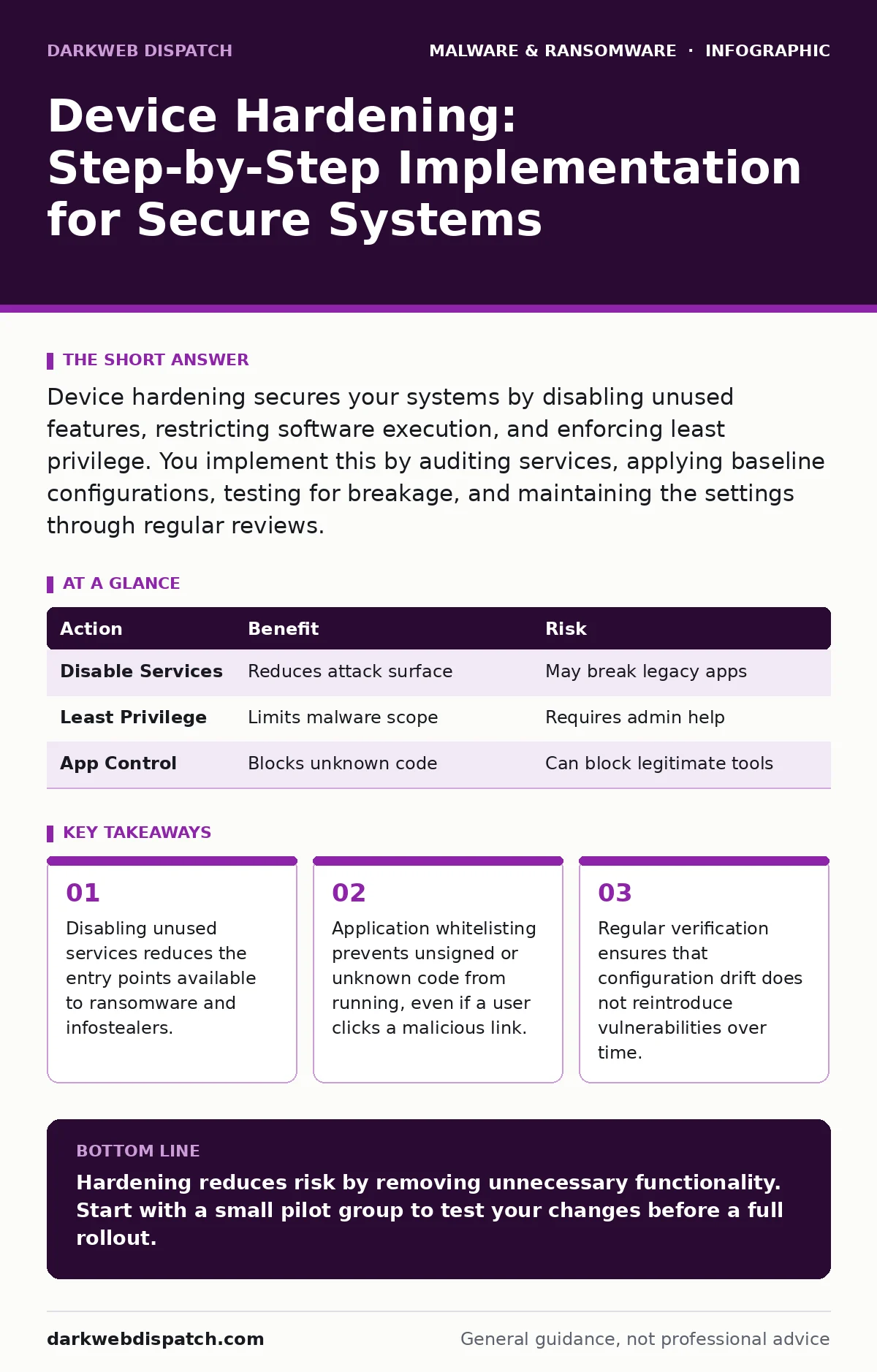
Device hardening secures your systems by disabling unused features, restricting software execution, and enforcing least privilege. You implement this by auditing services, applying baseline configurations, testing for breakage, and maintaining the settings through regular reviews.
Why Standard Defaults Fail
Default operating system settings prioritise ease of use over security. Every enabled service, every open port, and every installed application represents a potential entry point for an attacker. When you leave these defaults unchanged, you increase the attack surface. This is the total set of points where an unauthenticated user can try to enter data or extract data from your device.
Hardening reduces this surface. It involves turning off what you do not need. This approach differs from antivirus software, which tries to detect bad behaviour after it starts. Hardening prevents the behaviour from happening in the first place. It is a proactive measure. Imagine a building with many doors. You can install guards at every door, or you can weld most of them shut. Hardening is welding the doors shut.
Preparation: Audit Your Baseline
Before changing settings, you must know what is running. You cannot secure what you do not understand. Start by listing every service, driver, and application currently active on a representative device. Identify which ones are critical for your daily operations. Mark the rest as candidates for removal or disabling.
Do not assume that just because a service is running, it is necessary. Many legacy services exist for compatibility with older software that no longer exists. Check documentation for your specific applications to see what they actually require. If a service supports a feature you never use, disable it. This step saves you from breaking functionality later.
Step 1: Disable Unused Services and Protocols
Turn off services that are not required for your workflow. Common examples include print spoolers on devices that do not connect to printers, or file sharing protocols on devices that do not share files. Disabling these services removes the code that handles those functions from memory. If the code is not in memory, it cannot be exploited.
How to tell it worked: Attempt to access the service or protocol. For example, try to connect to a disabled file share. The connection should fail immediately. Check the system logs to confirm the service did not start. This confirms the service is truly inactive, not just hidden.
Step 2: Enforce Least Privilege
Users should operate with standard user accounts, not administrator accounts. Administrators have the right to change system files and install software. Standard users do not. If malware runs under a standard user account, it cannot easily install itself into the system directory or modify security settings. This limits the damage an attacker can do.
How to tell it worked: Try to install a new application or change a system setting. The system should prompt for an administrator password. If you are using a standard account, you will not have this password. This prompts you to request help from IT, adding a layer of human verification. This stops many instances of crypto-stealing malware that rely on quick, silent installation.
Step 3: Apply Application Control
Install and configure software restriction policies or application whitelisting. This mechanism allows only trusted, signed applications to run. Any other executable is blocked. This is more effective than blacklisting, which tries to block known bad files. Attackers constantly create new files, but they rarely sign them with a trusted certificate.
How to tell it worked: Try to run a script or executable from a temporary folder. The system should block it. Check the security logs to see a denial event. This confirms that the control is active and catching unauthorised code. This is particularly effective against spyware that attempts to run in the background.
Verification: Test for Breakage
Hardening can break legitimate workflows. You must test before rolling out widely. Create a test group of devices. Apply all hardening changes to these devices. Have users perform their typical tasks. Watch for errors. If a critical application fails, identify why. It may depend on a disabled service or a blocked script.
Adjust your rules to allow the necessary functionality while keeping the restriction tight. Do not disable all restrictions to fix one problem. Find the specific rule that is causing the issue and modify only that rule. This keeps the rest of your defence intact.
- Critical applications launch successfully.
- File saving and opening works as expected.
- Network connectivity is stable.
- No unexpected error messages appear.
- System performance is acceptable.
Upkeep: Monitor and Adjust
Hardening is not a one-time task. Software updates can change how applications behave. New features may require new permissions. You must review your hardening settings regularly. Check logs for blocked items that should have been allowed. Adjust your rules to accommodate legitimate changes.
Also, review new threats. If a new type of malware emerges, check if your current settings block it. If not, tighten your rules. For example, if double extortion ransomware starts using a specific file type, ensure that file type is blocked if not needed. Keep your baseline documentation updated. This makes future audits faster and more accurate.
Related Security Measures
Device hardening works best when combined with other security practices. It complements efforts to remove malware from a Mac or other systems by preventing re-infection. It reduces the effectiveness of ransomware-as-a-service kits by limiting what the malware can do. It also helps defend against Mac malware that often relies on user permission to install.
Consider how these measures interact. Hardening stops the initial execution. Other tools detect what gets through. Together, they provide layers of defence. This is known as defence in depth. No single layer is perfect, but together they create a strong barrier.
Common Pitfalls to Avoid
One common error is assuming that hardening only applies to servers. Workstations are just as important. Attackers often target user devices to gain initial access. Another error is ignoring configuration drift. Over time, settings change. Users may install software. You must enforce your baseline regularly.
Also, do not neglect documentation. If you do not write down what you changed, you will not know what to restore if something breaks. Keep a record of every setting change. This saves time during troubleshooting. It also helps new team members understand the security posture.
| Action | Benefit | Risk |
|---|---|---|
| Disable Services | Reduces attack surface | May break legacy apps |
| Least Privilege | Limits malware scope | Requires admin help |
| App Control | Blocks unknown code | Can block legitimate tools |
Key takeaways
- Disabling unused services reduces the entry points available to ransomware and infostealers.
- Application whitelisting prevents unsigned or unknown code from running, even if a user clicks a malicious link.
- Regular verification ensures that configuration drift does not reintroduce vulnerabilities over time.
Hardening reduces risk by removing unnecessary functionality. Start with a small pilot group to test your changes before a full rollout.
Frequently asked questions
Does device hardening slow down my computer?
Minimal impact occurs. Disabling unused services often improves performance by freeing system resources. Application control adds negligible overhead.
Can I harden my device without IT help?
Basic steps like disabling unused apps and using standard accounts are possible. Advanced controls like application whitelisting require administrative rights.
How often should I review my hardening settings?
Review after major software updates or when new applications are installed. A quarterly review is a good baseline for most organisations.
Does hardening prevent all malware?
No. It reduces the attack surface and limits damage. It must be combined with other security measures for full protection.
How this guide was produced: written by the DarkWeb Dispatch editorial team with AI assistance, checked against the public references listed below, and reviewed when the facts change. See our editorial policy or report an error.